• How to create a simple network topology

    Today I’m going to explain a simple way to create a network topology for your home needs. The solution provided would probably good enough for small offices as well, while bigger networks will need professional solutions.

    The topology the we are going to draw are to be considered as references for small networks that are slowly increasing in size. For example a few years ago we generally saw one computer per house, maybe with a modem connection to the Internet, but today we have more than one PC, smartphones, tablets, laptops, media centers, TV and small servers all connected to the internet in small/big home network.

    Therefore I see more and more often people struggling to remember what is connected to what or even what is supposed to be stored where or which name or IP are assigned to what. Summarizing… A mess…

    So in my research to solution to this problem I’ve thought to try to use something freely available to many and simple to use: LibreOffice Draw.

    I thought as well that it would have been nice to be able to use those nice Cisco icons that you can find in products like Cisco Packet Tracer and I’ve surprisingly discovered that Cisco has made available those icons to everybody in many different formats.

    Thanks to this we can now start preparing our home-made network  topology:

    1.download and install Libreoffice from this link;

    2. download the Cisco icons in JPG format at this link and uncompress the file in a folder of your choice;

    3. run Libreoffice Draw;

    4. Choose the menu Tools -> Gallery

    5. Now we are going to create a specific Theme by clicking on the button New Theme (this will open a new window);

    6. In the new window we can put a nice title (ie. “Cisco”) and then we need to choose the tab called Files;

    7. Now we choose Find and go to the folder where we decompressed the Cisco icons and then choose the path with OK;

    8. All the icons will be imported (it will take a few seconds) and then you can confirm with OK;

    9. The icons have been imported  but now you will need to have the icons window and the editing window both visible. To do this move the theme bar to the left or right of the screen. In this way you will see the editing area and the icons visible.

    10. Now you can start adding icons to the main area and by double clicking on them you’ll be able to write a multiline description (like the hostname and the IP address).

    See an example I’ve quickly drawn below:
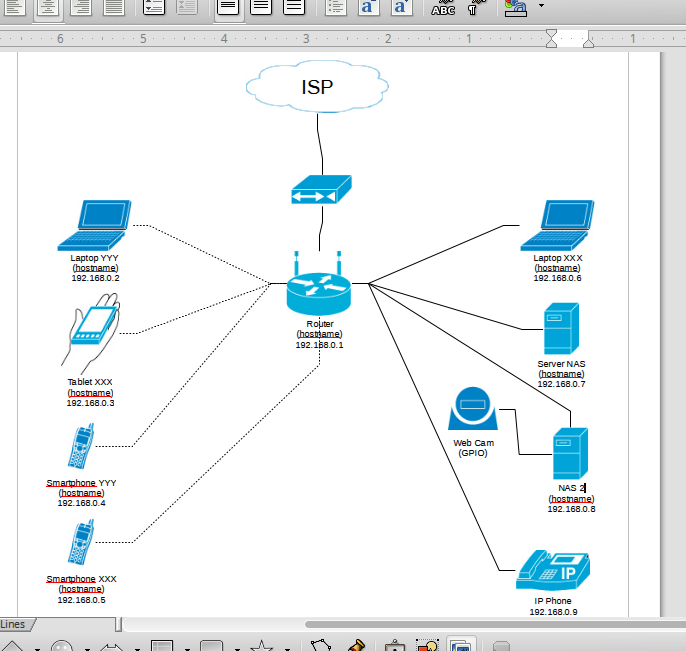
    Sample Network Topology

    Sample Network Topology

    Now you can have all the information you want at hand and maybe do proper planning on your network for future expansion!


    UPDATE 30/07/2014: as commented by Mark Oellermann (see comments below), he has made available under a Creative Commons Attribute-ShareAlike V3 license which allows commercial and non-commercial use, modification and redistribution as long as the terms of the license are met. These are available at: http://www.vrt.com.au/downloads/vrt-network-equipment

  • Tutorial: how to automatically mount WebDAV shares at boot in Linux

    In Ubuntu (and Kubuntu or Lubuntu) you can quite easily access a WebDav (or WebDavs) share using the standard file manager: Nautilus, Konqueror or PcManFm.

    Just put in the address bar the site you want to open (for example: davs://yoursitename or webdav://yoursitename) and click on enter… That’s it (probably you will be asked for credentials – just put the right ones there…)!

    To make it work you only need to know if the connection is secure (davs) or not (webdav) and if the package davfs2 is installed (open a terminal and type “sudo apt-get install davfs2”).

    However in some cases you may want to have this share always mounted in your system and without the need to put credentials. If this is your case, the solution is pretty easy:

    Create a folder on your disk into which the web share will be mounted:
    sudo mkdir /mnt/sharename

    sudo nano /etc/davfs2/secrets

    add the line:
    https://www.yourshare.com username password

    and now you need to make sure the connection is made each time you start your computer:

    sudo nano /etc/fstab

    at the end of the file, on a new line type:

    https://www.yourshare.com/ /mnt/sharename    davfs   defaults,uid=username,gid=username,_netdev,auto  0       0

    Please note the options uid and gid, these are used to tell to the system which user will be able to write to the share (normally is root). In this case “username” is the one you use on your computer.
    The option “_netdev” tells to the system to wait for the connections to be up before attempting to mount the share (otherwise it will fail). The mount will happen automatically, as requested by the option “auto”.

  • Introduction to the IT world

    Because of my job, I am in contact with dozens of people that on a daily basis ask me how they can start a career in IT or even how to understand if they are “cut for the job” or not.

    First of all,images I think that one of the most important things that an IT enthusiast or “wannabe” is the skill to teach themselves and to be curious about everything. IT is a big word that contains too many different aspects, jobs and roles to clearly and easily understand if you can cope with it, unless you try for yourself many times until you succeed.

    Do you want to be a programmer? A DB admin? Onsite engineer? No matter what is tickling inside yourself, you need to try it out and feel how it feels. Hands on experience is what will make you understand if you can make it (and keep it up) or not.

    When I was younger it was easier, as the lack of GUI gave you only one option: a command line. You liked the command line? Were you able to spend hours over hours without getting crazy or suffering from major headache? Then you can do it. No matter which area, you can do it. You will need to study, practice and bang your head against the screen, but you will make it.

    Modern OSes are quite user friendly and have become launchers for the software we need. There is not so much to tweak or modify (respect of what was the standard 20 – 25 years ago). Self healing systems, able to preserve your data and allowing a complete reimage in minutes is becoming common.

    A few years ago you had no Internet, no immediate way to ask for help, you had problems and you had to fix them. Alone. Yes, you had BBSes and networks like Fidonet to find information, but you needed the time and patience to wait for days for an answer (not always, but in many cases).

    So in these days I’ve stumbled across the Synchronet BBS software, that has been created in 1992 and it’s still under development and to be honest, it’s an amazing and impressive software that includes:

    1. BBS software

    2. Web server

    3. FTP server

    4. Telnet/SSH server

    5. IRC server

    6. Mail server (SMTP/POP3)

    7. Usenet Server (NNTP)

    There are even more servers, but those are the main ones. Basically you can install your copy of Synchronet and configure a Webserver, Mailserver, FTP server using just one platform.

    When I’ve seen this, I had to try to make it working on one of my RaspberryPi and this has been quite easy (as it’s just a matter of following the instructions to compile it from CVS.

    Then I had the pleasure to have to modify many text files, use a couple of text based GUIs and slowly see my BBS starting breath and live. I used to maintain a BBS in the 90’s so it has been quite easy to grasp the basics, however this software is not based on the Internet protocols (and supports the standard modem connections), so I had to read many guides and manuals, but now I have a the BBS up and running, together with the Mail, Web, IRC, Telnet, SSH and FTP servers. Now I’m going to create some ANSI art and see if I want to advert this BBS to the world…

    I’ve spent hours doing this, still using the command line, and enjoyed every moment of it. Therefore I thought that the next time asks me if IT is something that he/she could master, I will probably ask them to prepare a *nix machine and install Synchronet on it.

    You don’t know what Linux or a BBS is? You don’t know how to use the command line? You want to receive a perfect training on all these things? You are not the one for the job. Are you going to surf the Internet for hours, break your machines dozens of times, document what you’ve learned, call a friend on the other side of the planet to ask him how to do something and, most of all, are you going to read (and understand) the manual and the instructions?

    Welcome to IT.

    funny