• Tutorial: troubleshoot and improve Boot Time in Ubuntu Linux with Bootchart

    When you install a fresh copy of any operating system, the boot phase is generally good, mostly because there is any software installed a part from the ones provided with the OS installation itself. But when you start using you computer you will install other software, start playing and tweaking the OS and you will see longer boot times.

    How do you know if there is anything wrong with your boot time?

    First thing to understand is that if you’ve installed any program that does something at startup time, you will have to accept longer boots time, no matter what, but sometimes it’s just a badly written software or after an update that you may notice that something is wrong.

    In order to understand if your system has an issue or not, you will probably need help. And Ubuntu can help you out very well by installing the application Bootchart.

    Open the Ubuntu Software Center or the Synaptic Package Manager and search for “bootchart” (or just type sudo apt-get install bootchart in the terminal window); you will be able to install this very useful piece of software. Obviously you will have to reboot you machine, so the logs will be captured.

    Bootchart is a utility that compiles all the relevant logs when the machine is booting and renders them in a Gantt chart. It has been developed in Java and is basically a script that reads all the info gathered by the bootchartd (boot logger) daemon (it’s launched by the kernel).

    The result is an image showing the boot time on the horizontal axis and all the various processes started during boot on the vertical axis. Please note that you will be able to see dependencies (if a process has launched another one) and different colors to indicate CPU/Disk usage.

    Here you have an example boot chart image:

    Test Bootchart Image

    Test Bootchart Image

    The logs captured and the images generated are saved by default under /var/log/bootchart/

    A good thing to do is to take a snapshot of your system right after has been installed, and then taking snapshots on a regular basis in order to see if there has been an increment in boot time and which processes have caused this. Another good reason to check your boot time is before adding a new hardware or making an important change to your system. By having a snapshot before and after the change you will be easily able to identify any problem and its root cause.

    On the Ubuntu’s Wiki site you can see other users Boot Charts that can be interesting for you to compare with and you can even upload your own.

    It’s important to remember that once you’ve done your tests, it’s recommendable to remove Bootchart from your system, otherwise:

    1. Your /var/log/bootchart/ folder will be filled with Boot charts at every boot.
    2. Your boot will be slightly slower as it has to collect the logs and compile the graph.

    You can obviously remove it from the Software Center or Synaptic or by running sudo apt-get remove bootchart from a terminal console. Please remember to save all the logs you may need and leave the folder /var/log/bootchart clean and tidy!
  • Tutorial: how to understand and troubleshoot Windows’ Blue Screen of Death (BSOD) with BlueScreenView

    Today we’ll go inside that blue window that most of times it’s mainly useless and cryptic, saying that something bad has happened to our OS, but what it was exactly it’s still a mystery for us. It’s a way to shutdown immediately the OS before further problems can happen.

    First thing to say, when Windows crashes badly, it’s very difficult to see an error window with a clear and easy to read error message. In fact the OS crashed and the BSOD is just a basic function that tells you about an issue and, if Windows has been properly configured, it will save a full or partial memory dump to your disk (most of the times under c:windowsminidump under Windows XP/VISTA or under c:windowsmemory.dmp under Windows 7 – anyway is taken from the registry key HKEY_LOCAL_MACHINESYSTEMCurrentControlSetControlCrashControl).

    Microsoft Windows allows you to read the memory dump you’ve saved (full instructions are on Microsoft KB at:http://support.microsoft.com/kb/315263) but you will have to install the debugging tools and make good use of multiple command line based instructions.

    In order to make faster and easier troubleshooting of the BSOD, Nirsoft has created BlueScreenView that is a good tool that will easily analyze and make you understand which component/driver has failed.

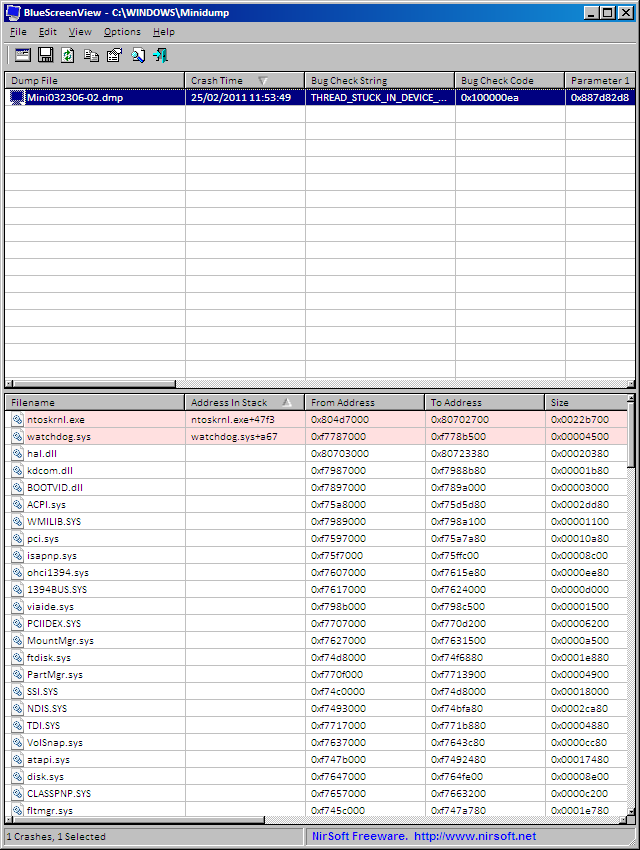
    When you start BlueScreenView you’ll see that it will automatically identify where the minidumps are (if any) and the minidumps will be in the upper pane and the drivers involved in the crash will be listed in the lower pane.

    Main View

    In the lower pane you’ll notice that some files will be highlighted in pink. Those files are the ones directly involved with the crash. All the other were loaded at that time, but Windows hasn’t identified them as part of the issue. If you double click on those files you’ll see more details:

    Driver Info View


    The same happens if you double click on the minidump itself in the upper pane:

    Minidump Info


    Please note the “Caused by” field that clearly states which drivers has caused the crash. Obviously we need to think that nay driver may fail not only because of a bug in its code, but it can fail because of a bug in the OS itself or in some other component’s code. This tool is very good in telling us which component has failed but this is the first step of troubleshooting. To be honest most of the times the identified culprit is the real one (a damaged file, a new driver, some test software installed). So we can restore a good copy of the file, or use a different version of the driver and the problem will disappear.


    In the menu “Options” you can configure what to see in the lower pane:


    All Drivers”: see the list of all drivers loaded during the crash;

    Only Drivers found in stack”: display all the drivers involved in the crash;

    DumpChk Output”: Displays the output of DumpChk (that is the Microsoft tool used to troubleshoot the dumps;

    Blue Screen in XP Style”: display the BSOD in a similar way it appeared when it happened:

    Blue Screen of Death view

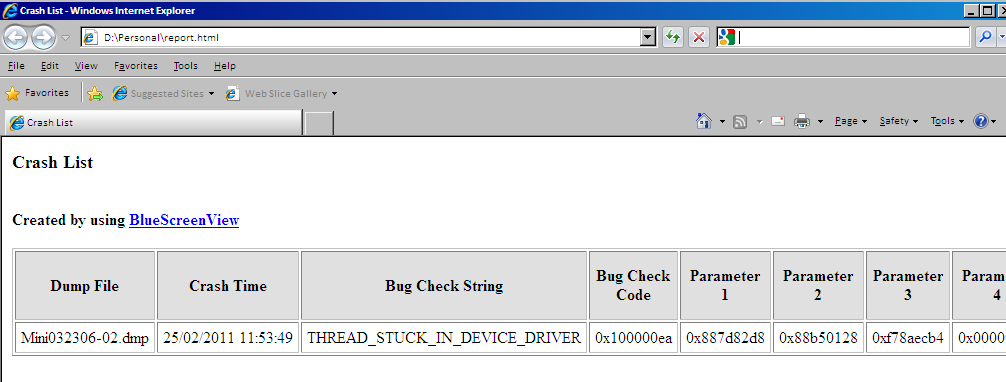
    The last function we are going to see is the function to export the crash dump file list in html format. In the “View” menu, you can see the option to export to HTML so you can choose to export the whole list or just the ones you’ve highlighted.

    Export to HTML


    I hope that you’ll have luck in fixing all those BSOD you see everyday on tons of different machines. BlueScsreenView will help you a lot out there…

  • Ubuntu: Restore / Refresh Gnome settings

    Spent some time doing “cool experiments” with your Gnome environment? Icons cannot be changed anymore, fonts are not appearing as they should, windows graphic has become messy… Well think it’s good time to remove all those “messy changes” and start from the scratch with a default Gnome environment.

    To find out what is wrong because you don’t want to restore all the settings is something that may need A LOT of time, so I will explain three methods to restore Gnome defaults, one way to start investigating the source of the issues and one way to avoid issues like this to happen.

    Restore Gnome Settings (Method #1)
    – Open a terminal by hitting CTRL + ALT + F1
    – login to your account, and run the following command:
    sudo service gdm stop

    – If you are using an old version of Ubuntu, the previous command will not work and you’ll have to use:
    sudo /etc/init.d/gdm stop

    – Then you can run the following commands:
    mv .gnome .gnome_old
    mv .gnome2 .gnome2_old
    mv .gconf .gconf_old
    mv .gconfd .gconf_old
    mv .metacity .metacity_old

    – Again, for recent Ubuntu version (like Maverick or Intrepid) run:
    sudo service gdm start

    – For older versions run:
    sudo /etc/init.d/gdm start

    Restore Gnome Settings (Method #2)

    – Open a terminal by hitting CTRL + ALT + F1
    – login to your account, and run the following commands:
    mv .gnome .gnome_old
    mv .gnome2 .gnome2_old
    mv .gconf .gconf_old
    mv .gconfd .gconf_old
    mv .metacity .metacity_old
    – Get back to your GUI desktop by hitting CTRL + ALT + F7

    Restore Gnome Settings (Method #3)
    When you run an Ubuntu system it’s probably a good idea to use Ubuntu Tweak. If you launch it and choose the section called “Desktop”, you will be able to select the category “Desktop”. You will then notice the buttons at the bottom right called “Recover”, “Reset” and ” Backup”. The option “Reset” will automatically restore Gnome’s default settings. The difference between this function and our manual methods is that this tool will DELETE your settings while we just save them with a different name. Bear in mind that it’s always good to know how to fix things manually (especially when Gnome is badly damaged and you don’t have an environment where you can easily work on.

    Investigate what went wrong

    Now that your graphic environment is working at its defaults, you can start investigating what wasn’t working properly. Please note that as we’ve previously renamed the original folders by appending a “_old” to all of them, therefore we haven’t removed all your settings. This means that the problem you want to identify is inside one (or more) of those renamed folders.

    So if now we switch back to the terminal with CTRL + ALT + F1, login into the system, we’ll be able to see that all those folders have been recreated using the Gnome defaults. This means that now we can rename one of those folders and give back the original name to the non working one :

    For example let’s say that we will rename “.gnome”:
    mv .gnome .gnome_new
    mv .gnome_old .gnome

    By running those two command we’ve saved some of Gnome defaults into .gnome_new and restore some of the non working ones. Go back to your GUI with CTRL + ALT + F7. Is Gnome broken again? You’ve found the folder that contains the issue… Is Gnome working fine? This means that the issue will probably be inside another folder but now we know how to proceed.

    How to prevent this kind of issues
    As we’ve already seen in the Method #3 to restore Gnome’s defaults, you can use Ubuntu Tweak and its “Reset” function. However we have the “Recover” and ” Backup” one. The last one takes a snapshot of the current settings, that can be later restored by clicking on “Recover”.
    Yes, you’re right, you can take different snapshots of your settings and then go back to the one you want. To be honest, you can do it manually by copying your .gnome, .gnome2, .metacity, etc, folders somewhere easy for restoring them in case something is going wrong, but this tool works very well taking the snapshots and restoring them. I’ve tested by taking various snapshots and changing different settings between one snapshot and the other and the tool was always able to restore the right data in the right way.

    This has been a long article, but I hope it will be useful to you as I’ve seen this kind of issues on different machines. Please remember that Gnome settings are a per-user-settings so you can alway log into the system as another user or using the Rescue CD to rename/remove the offending folders.